
By now, most people have used ChatGPT or Google Gemini to generate answers or ideas. The conversational give-and-take feels intuitive and can be used with very little training or guidance, and much of that functionality is now finding its way into Google Search.
The most noticeable integration of AI into Google is the AI Overview that appears at the top of many traditional Google searches.
AI Overviews
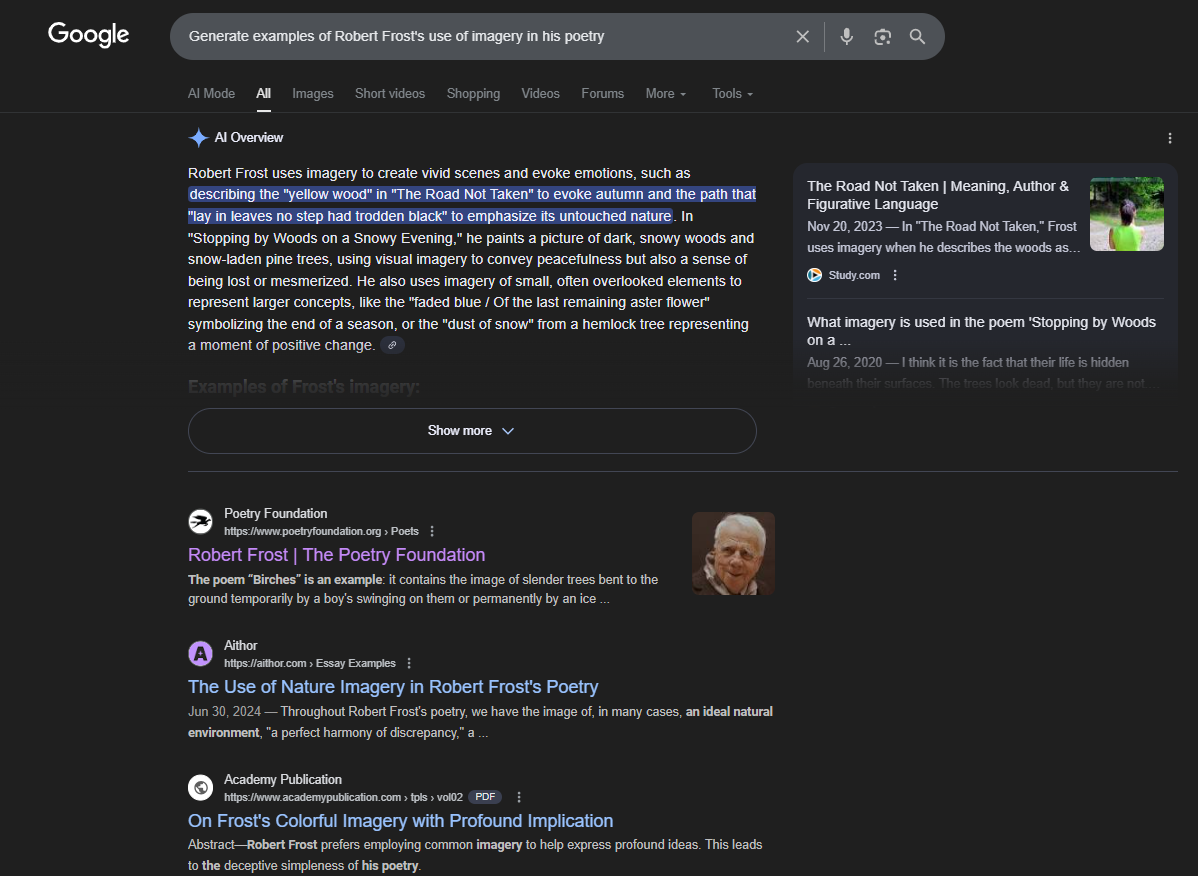
When you enter a prompt into Google, such as “Generate examples of Robert Frost’s use of imagery in his poetry,” it will give you an accessible summary at the top of the page. This provides you with a quick, scannable response to your prompt.
To the right of that overview is a list of links that were used to generate the displayed summary. This allows you to check Google’s work. While the overviews are generally accurate, they can also be wrong. Clicking into the source links lets you not only check for accuracy but also dig deeper into the content. If you want even more, you can scroll down the page for a more traditional list of website links produced by your prompt.
These summaries can save you lots of time if you’re looking for quick answers to questions that are not critically important. Google is essentially acting as your research assistant by scanning relevant webpages and then using AI to generate the summary.
For questions of high importance that require a correct response, you’ll need to proceed with more caution. In those cases, you can still read through the overview summary to acquaint yourself with a surface-level understanding of the topic before proceeding with a deeper dive into the list of links that have been generated.
Even when digging into the links, you still need to vet out those sources for credibility and accuracy. Both pathways require your human skills of content verification and credibility detection.
AI Mode
The newest AI interoperability built into Google searches is called AI Mode. It was introduced in the spring of 2025 and has been gradually expanding globally.

To access this, navigate to Google, and then click on the “AI Mode” button at the right of Google’s search field. Upon clicking “AI Mode,” you will be greeted by a page that welcomes you with the heading “Meet AI Mode” and the sub-caption “Ask detailed questions for better responses.”
The search box cues you to “Ask anything,” and there are sample searches listed below to get you started. These are based on your past browsing history.

There are also options to click a microphone to verbally share your prompt, click the plus icon to upload an image or file, or even create an image using Nano Banana. In a sense, you’re getting Google Gemini generative AI embedded into Google Search.
Using AI Mode
To use AI Mode, input a prompt and click enter. You’ll get an AI-generated summary similar to what you would get with a regular Google AI overview, and you also get a list of the sites that were used to generate the summary.
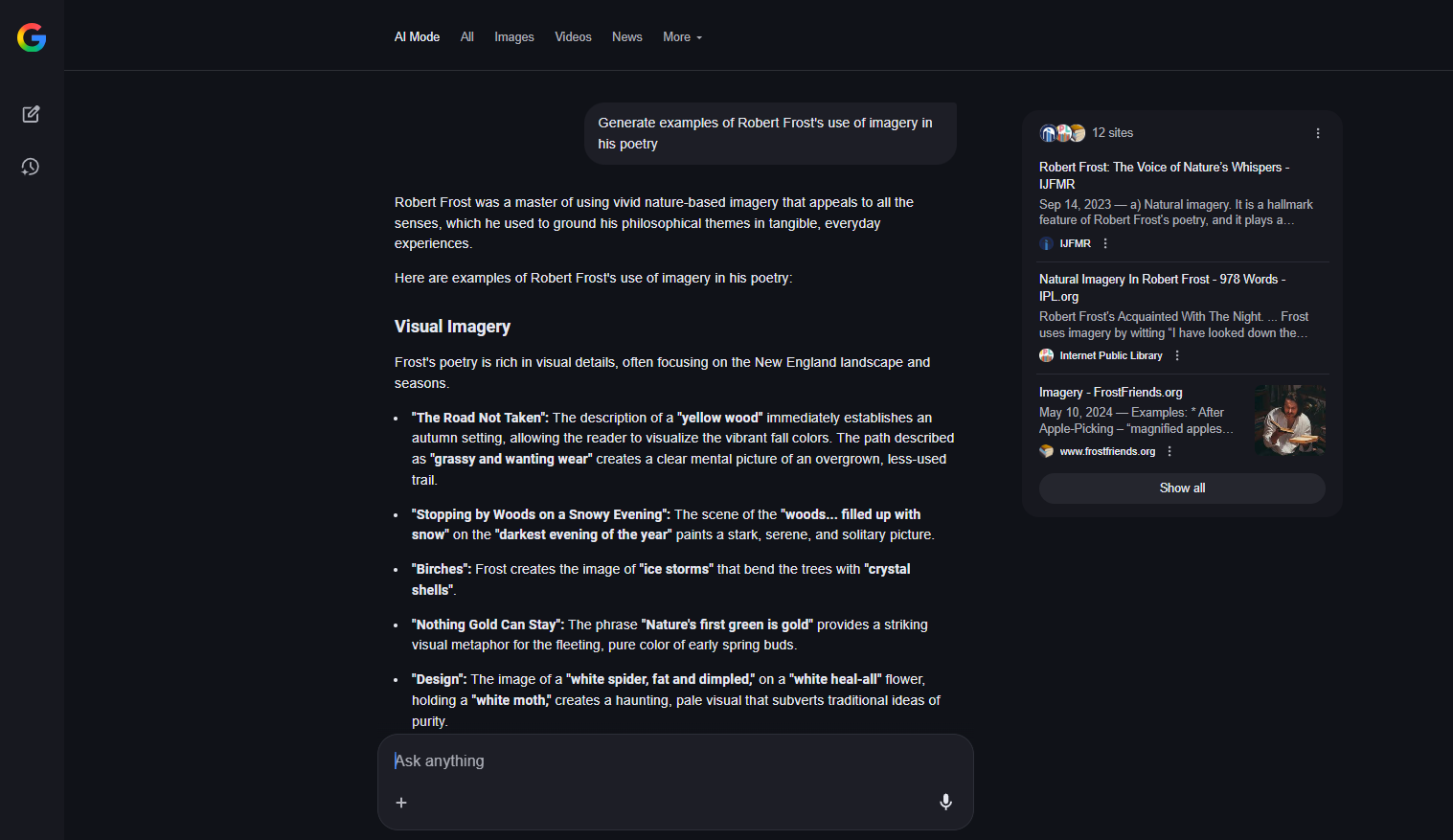
So how is this different from the AI summaries that you receive in Google’s regular search mode?
Google Gemini describes the difference in this way: “AI Overviews and AI Mode are two distinct generative AI features in Google Search that differ in their integration, interaction style, and the complexity of queries they handle. AI Overviews are automatic summaries within standard search results, while AI Mode is a separate, interactive, and conversational experience for deeper research.”
The following are six key differences between the two options:
1. Interface: AI Overviews appear as a summary at the top of a traditional search results page, while AI Mode replaces the entire results page with a chat-like conversational interface.
2. How a User Triggers the Feature: AI Overviews are generated automatically for queries where Google’s systems determine a summary would be helpful. AI Mode, on the other hand, is user-initiated and is accessed by clicking the AI Mode button or by navigating to google.com/aimode. AI Mode is considered better for complex, multilayered queries.
3. User Interaction: AI Overviews offer a single, static snapshot of information with source links. Additional interactions require clicking on individual links. In AI Mode, the interaction is more dynamic and conversational, allowing users to ask follow-up questions in a back-and-forth dialogue that carries context from previous questions forward to subsequent inquiries.
4. Query Type: Traditional searches are best for straightforward questions, definitions, and quick fact-finding where a concise answer is desired. AI Mode has been designed for more complex tasks, research, planning, and comparisons that require deeper explorations, reasoning, and follow-ups.
5. Technical Capacity: AI Overviews use a custom Gemini model to provide a summary from one round of AI analysis. AI Mode, in contrast, uses a more powerful custom version of Gemini and the “query fanout” technique to perform multiple parallel searches and provide a more comprehensive answer. Essentially, AI Mode divides a complex query into subtopics and searches them simultaneously before synthesizing a response from those results.
6. Availability: AI Overviews are widely available to all users across the globe. Conversely, AI Mode is gradually being rolled out, starting with the U.S., and requires users to be signed in to their Google account.
In many ways, AI Mode is like using the Gemini generative AI chatbot with traceable web citations included in the interactive experience. Sources can generally be listed in the Gemini chatbot as well, but with AI Mode, you get those lists by default, and it’s initially accessible from the Google search screen.
Advanced Features
In addition to basic AI prompts, there are a couple more advanced ways to use AI Mode:
1. Multimodal Input: Google’s AI Mode supports using text, voice, or image inputs. You can even use the integrated Google Lens inside of Google Chrome or on a phone app to ask the AI about what you’re viewing. You can upload a photo and ask questions about it, or you could have the AI examine your computer screen. For instance, you might have a spreadsheet open and ask the AI where to click to add a new row.
2. Cross-Tab Analysis: If you have multiple tabs open in your browser about a topic you’re researching, you can ask the AI to compare tabs or summarize findings across those tabs. This can save you lots of time bouncing back and forth from tab to tab.
Using AI Mode to Teach, Not Just Get Answers
One concern that teachers often express about generative AI is it can shortcut student thinking, simply giving them answers rather than requiring them to think. This is a valid concern, and one strategy to address this is to turn AI Mode into a tutor rather than a knowledge master.
In terms of how this could work, you would begin with a question to the AI. For instance, an English teacher might type in: “Tell me about Robert Frost’s use of metaphors in his poetry.” The AI will provide an answer along with examples. It will also provide links for digging deeper into the source material.
To take it a step further into application, the teacher could prompt the AI with: “Teach me how to write a metaphor in the style of Robert Frost.” This prompt returns a nice overview, including key characteristics of Frost’s metaphors. It follows that up with a step-by-step guide to writing a Frost-style metaphor, and the five actionable steps include examples for each step. It also presents an example with analysis.

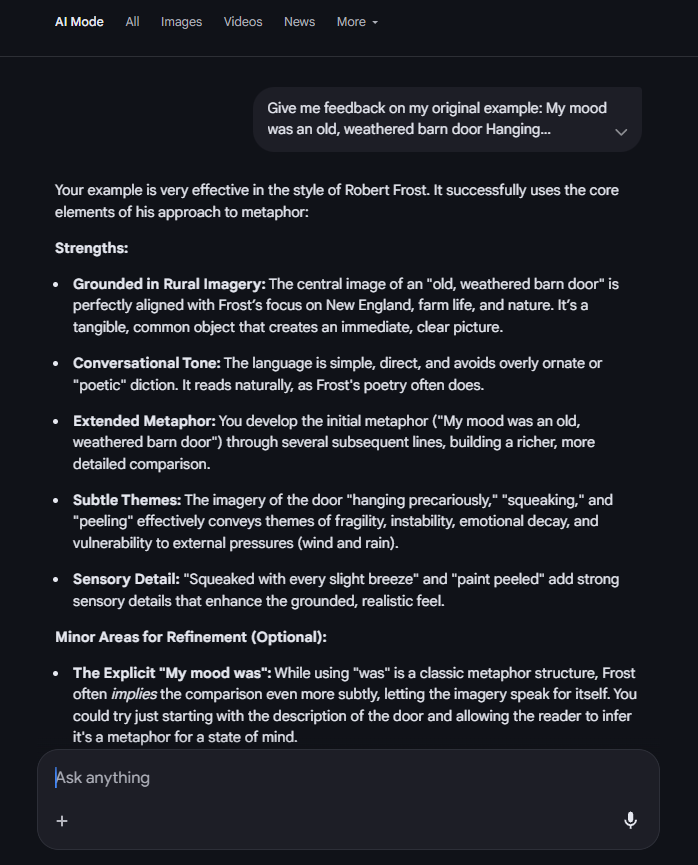
In response to this, the teacher can have students follow the steps provided and write their own metaphors in the style of Frost. They could then paste the metaphor into the chat box and request of the AI, “Give me feedback on my original example.” This is where the real learning happens.
The AI will generally respond as a kind teacher, in this case offering five areas of strength. It then offers what it calls an optional minor area of refinement, giving a suggestion for rewriting. In a scenario like this, a student could rewrite the example based on the feedback given and reupload it into the prompt, asking for more feedback on that revision. In this type of interaction, the AI is acting more like a tutor or coach than an answer engine.
Beyond that, the English teacher could request from the AI, “Turn this thread into a lesson plan to help 9th grade students understand and practice writing metaphors in the distinctive style of American poet Robert Frost.” Generative AI is generally very good at this type of task. If something is not satisfactory, the teacher can refine the lesson with follow-up prompts.

In short, the auto-generated AI Overviews in a normal Google search can be helpful for getting quick answers to simple questions. If you’re looking for a more in-depth conversation with a thought partner, AI Mode might be the better choice. It gives you much of the same experience that you’d get from interacting with the Gemini chatbot, with the convenience of accessing it within Google Search and with the auto-generated source links as well. Give it a try to see how it works for you.
AVID Connections
This resource connects with the following components of the AVID College and Career Readiness Framework:
- Instruction
- Systems
- Rigorous Academic Preparedness
- Student Agency
- Insist on Rigor
- Break Down Barriers
Extend Your Learning
- Google Gemini (Google)
- Google Search (Google)
- Google AI Mode (Google)