
In late January of 2026, Google announced a partnership with nonprofit organization Khan Academy to build new educational tools powered by Gemini AI. One of those tools is Writing Coach, which has been designed for students in grades 7–12.
Sal Khan, the founder and CEO of Khan Academy had this to say about the partnership: “School district leaders are telling us that one of the biggest challenges they face right now is helping middle and high school students who are behind academically, especially in reading and language arts. We’re proud to partner with Google to provide AI tools designed to improve reading and writing, enabling teachers to spend more time directly supporting the students who need their help the most.”
What is Writing Coach?
Khan Academy’s Writing Coach is an engaging, interactive online learning experience where students are guided through the writing process by a series of AI-generated prompts. The process follows steps that you’d find in a traditional writing process: understanding, outlining, drafting, and revising.
The writing task is assigned by the teacher, who can choose from a list of premade assignments or design their own from scratch. Teachers share the assignment with students using either a join code or URL. Once students have accepted the invite, their accounts will appear in the teacher dashboard, where teachers can follow progress and review interactions with the program.
The program itself is powered by Google’s Gemini AI, and it is designed to guide students without doing the writing for them. As its name implies, it coaches them through the writing process.
A Five-Step Process
Step 1: Sign up.
Before being able to engage with the tool, you will need to set up your free account, which can be created at Khanmigo.ai. If your school subscribes to a paid version of Khanmigo, your students will already have accounts. If not, then students will also need to set up free accounts to access Writing Coach. When having students set up accounts, be sure to adhere to all local, state, and national laws and guidelines.
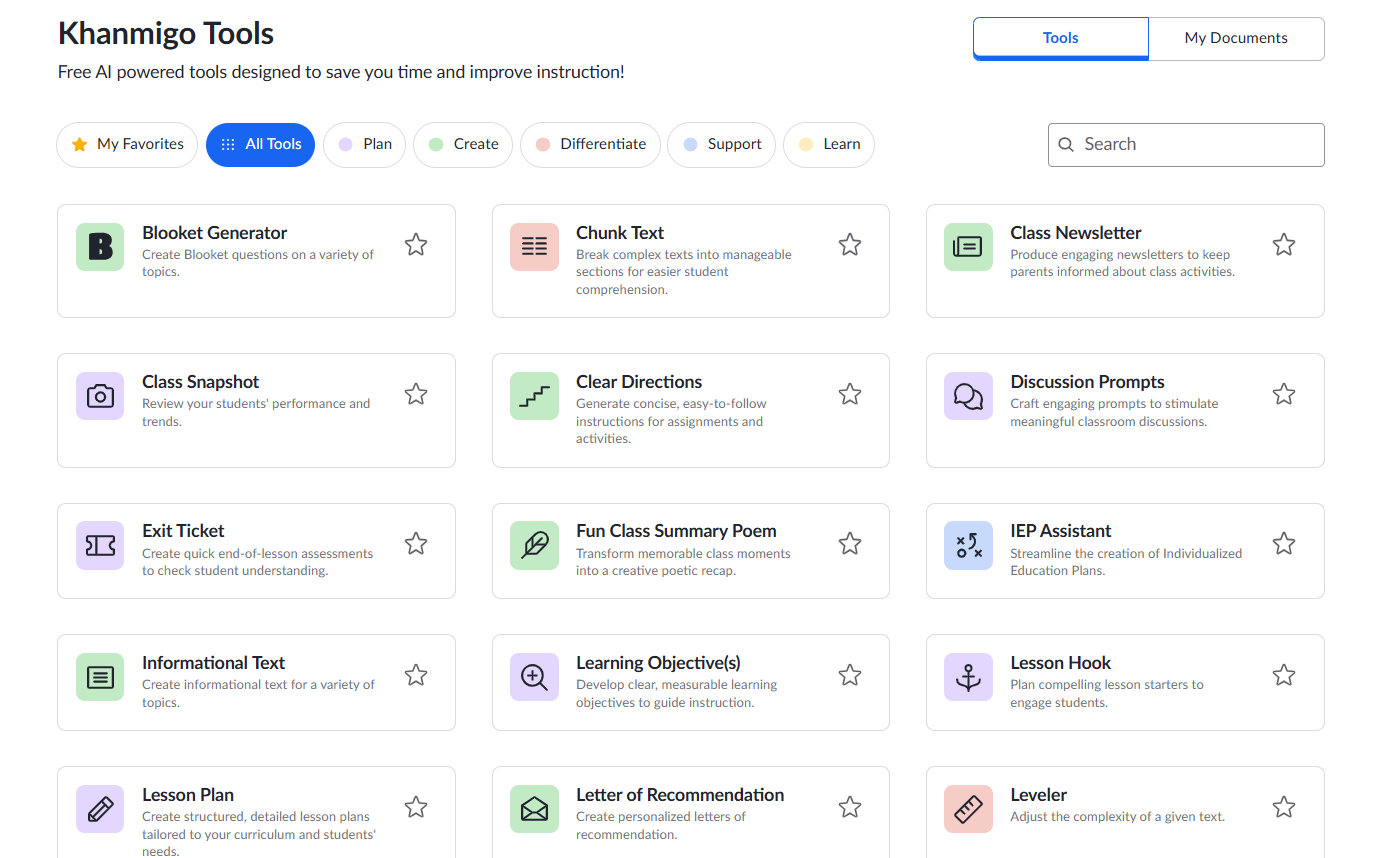
The full Khanmigo account offers teachers much more than just the Writing Coach tool. In fact, there is a broad palette of free teacher resources, which include options like a booklet generator, class newsletter, discussion prompts, exit tickets, lesson plan, question generator, rubric generator, and many more. The paid tier of Khanmigo opens up additional student-centered experiences as well, but the teacher resources are always free.
Step 2: Access Writing Coach.
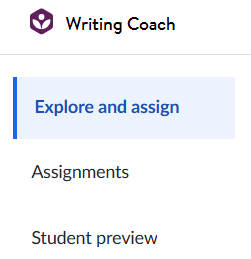
To access Writing Coach, click the “Khanmigo” menu at the top and choose the “Writing Coach” option. This will take you to a screen where you’ll create, access, and manage your assignments.

There are three main menu options from which to choose. The first is the “Explore and assign” option, where you’ll either choose from a prompt library or develop an assignment of your own. There is also an “Assignments” option, where you can see all of your assignments and review student progress, and a “Student preview” feature.
Step 3: Create an assignment.
To do this, click the “Explore and assign” menu option. You’ll then see a screen where you can explore premade essay prompts or create your own.
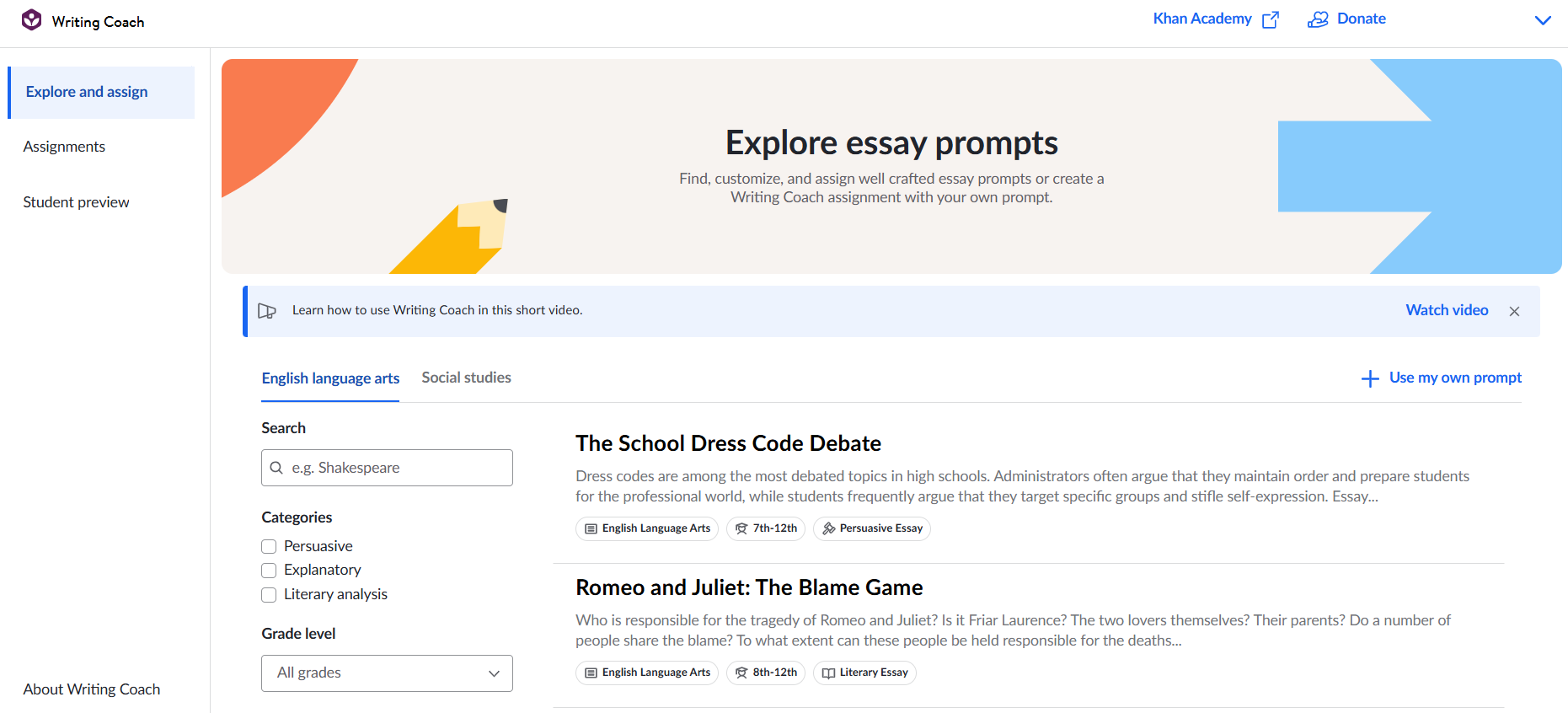
Currently, there are premade assignments for English language arts and social studies. Under ELA, you can choose from three types of essays: persuasive, explanatory, or literary analysis. Some of the premade examples include a debate around school dress codes, an essay about Romeo and Juliet where students explain who they think is responsible for the tragedy, and a compare/contrast essay.
Under social studies, the topics are broken down differently. On that screen, you can choose from U.S. History, AP World History, World History, Government and Civics, and OER Project. Social studies topics here include: Civil Society During WWI and WWII, What if the Bill of Rights Didn’t Exist?, Globalization and the Digital Revolution, and Security and Freedom After 9/11, among others. Even if you choose one of these premade options, you can still edit the details as needed to meet your needs and objectives.
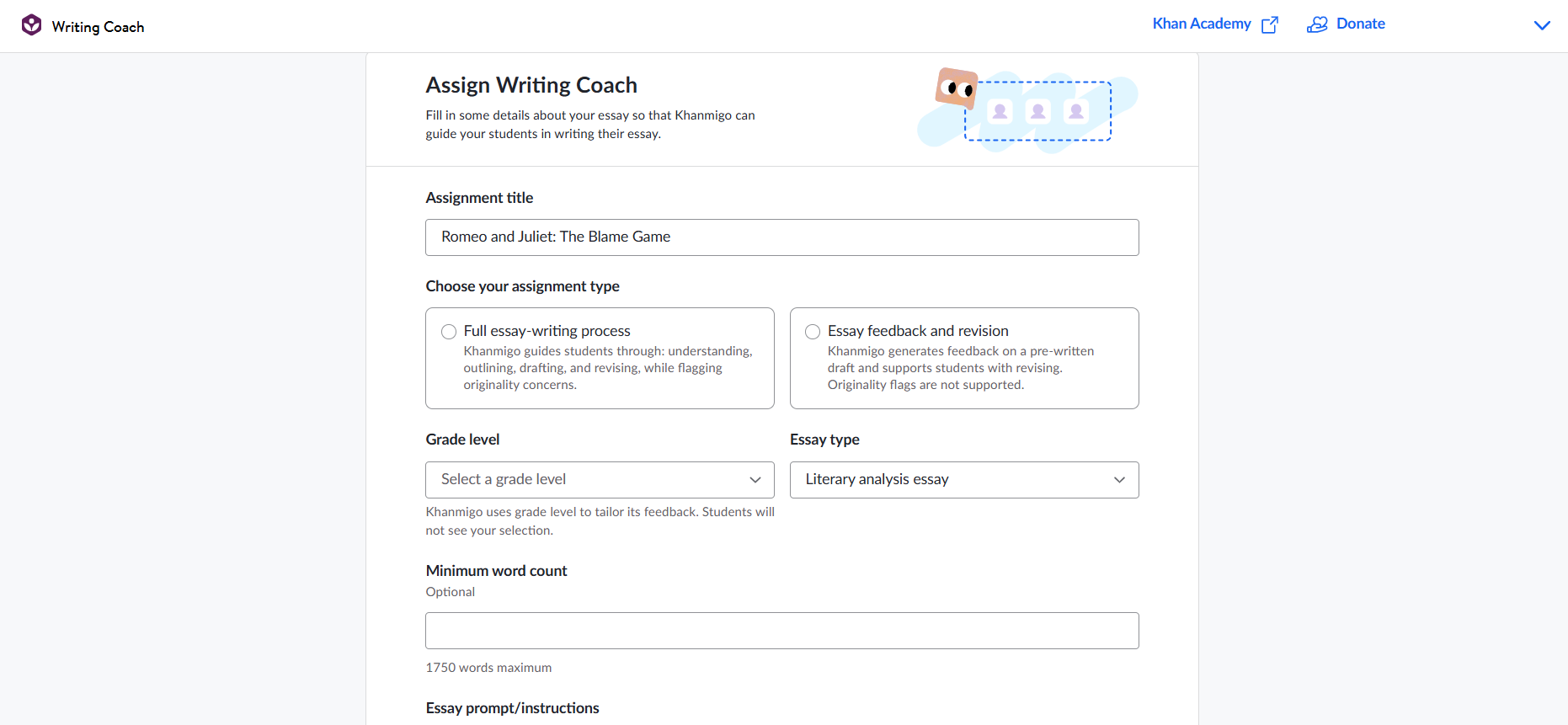
If you’re looking to create your own assignment, you can do that as well. Click the “Use my own prompt” link in the top-right corner of the screen and complete the necessary fields. You can choose to have students engage in the full essay-writing process or just get help with feedback and revision on an essay they have already written. There’s a check box for each option. Simply pick the one you want, fill in the assignment title, grade level, essay type, and instructions, and either choose a class or create a new one to assign the work.
When you click the button to create the assignment, you will be presented with both the join code and the URL link. Students can access the assignment either way. The URL is especially handy for posting in your learning management system as a way to share with students.
Step 4: Students complete the assignment.
This is the point where students get to engage in the experience and improve their writing skills.
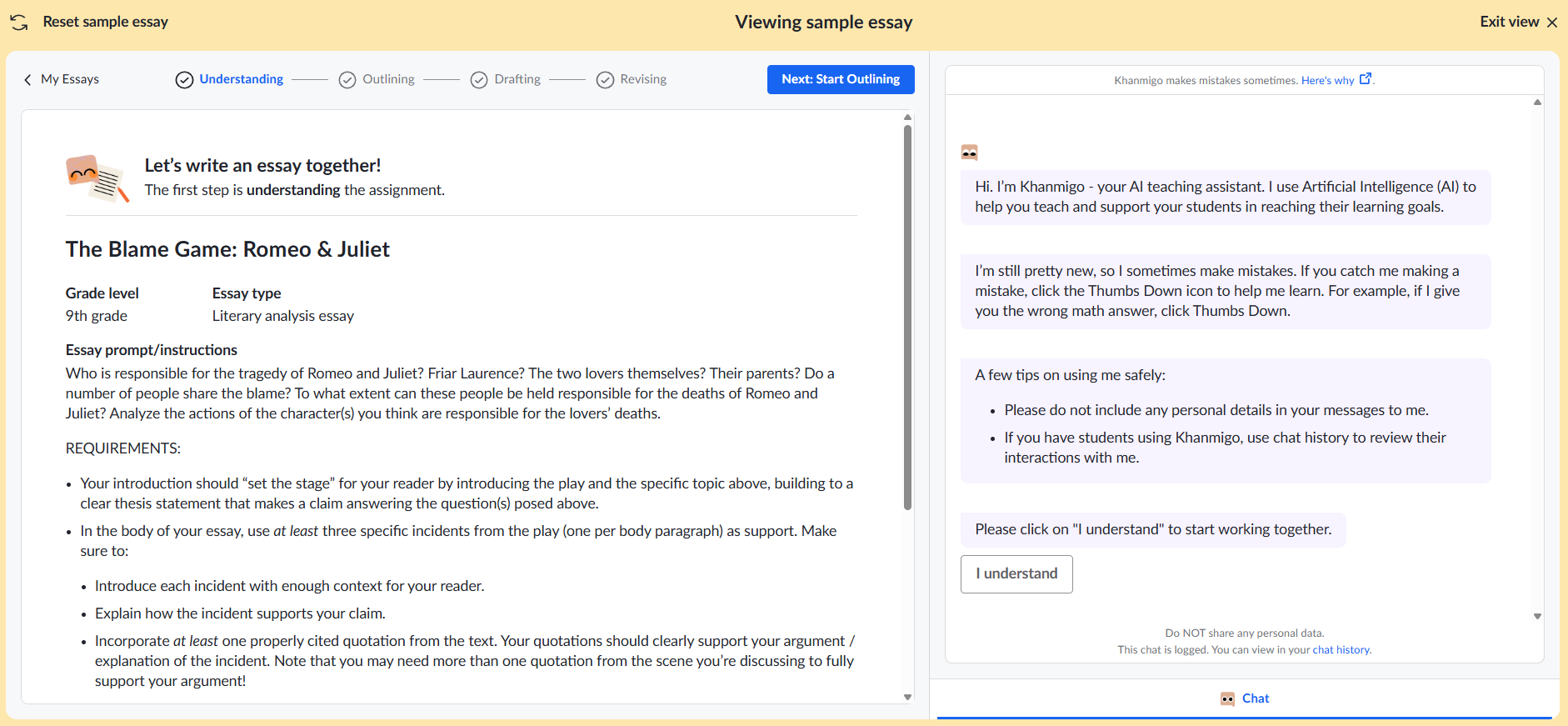
Their work begins with the Understanding step, which is where the assignment is presented to the students. The added functionality here is that students can use the embedded AI chatbot to ask questions and get clarifications about the assignment. If the AI doesn’t answer the question, the students can still ask you. This is especially helpful when you have a whole class of students needing help all at once. Students must click “I understand” to advance to the next step. Once they do that, they click “Next: Start Outlining.”
In the Outlining phase, the students plan their writing. Students are prompted to write a thesis or claim, create topic sentences for their paragraphs, and plan out support by providing evidence and examples. They will also be tasked with explaining how this supports their claim. They do this by filling in prompt boxes that are organized like an outline.
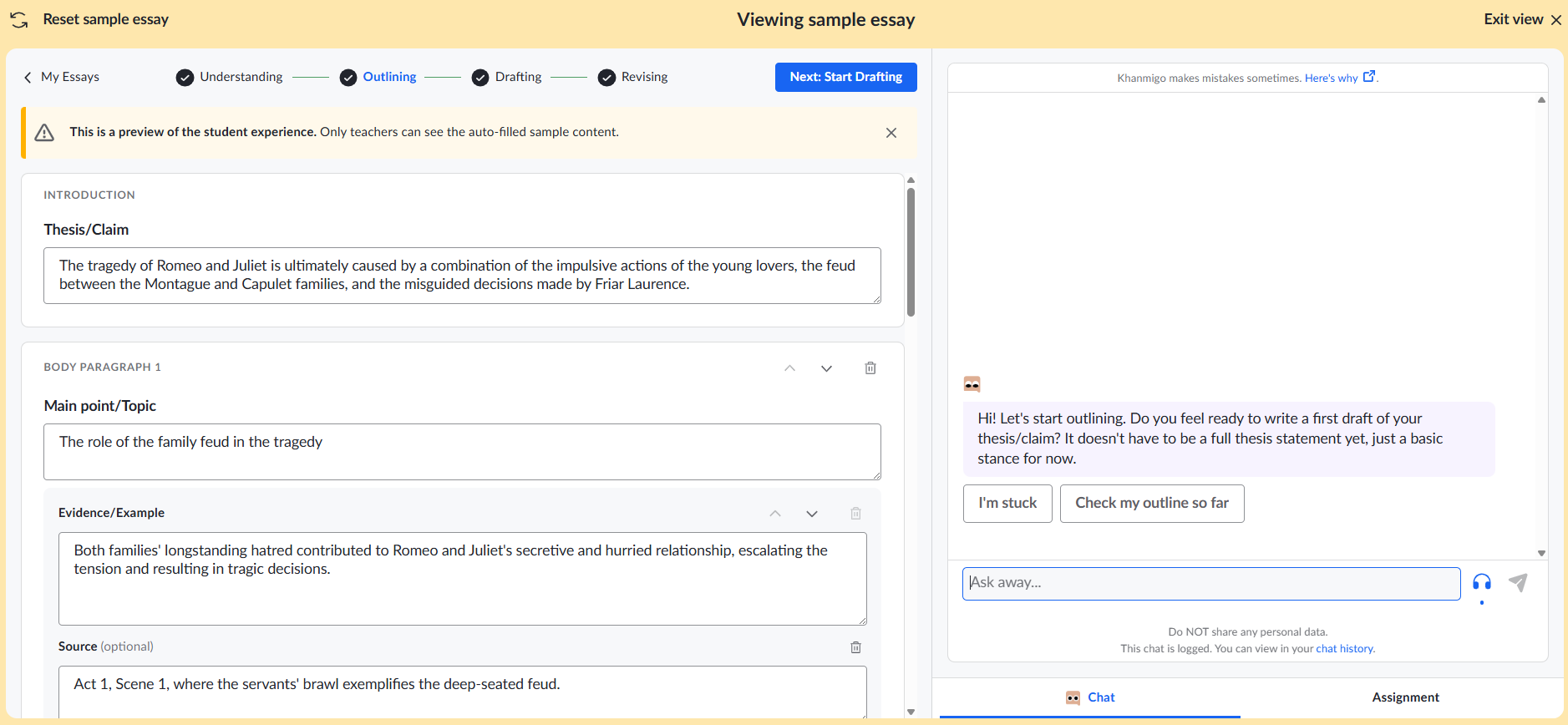
If they’re not sure what to do, students can click the “I’m stuck” button above the chatbot. They can also ask the chatbot questions, have the AI check their outline, and receive personalized feedback. Writing Coach is designed to prompt the student for ideas and not complete the work for them.
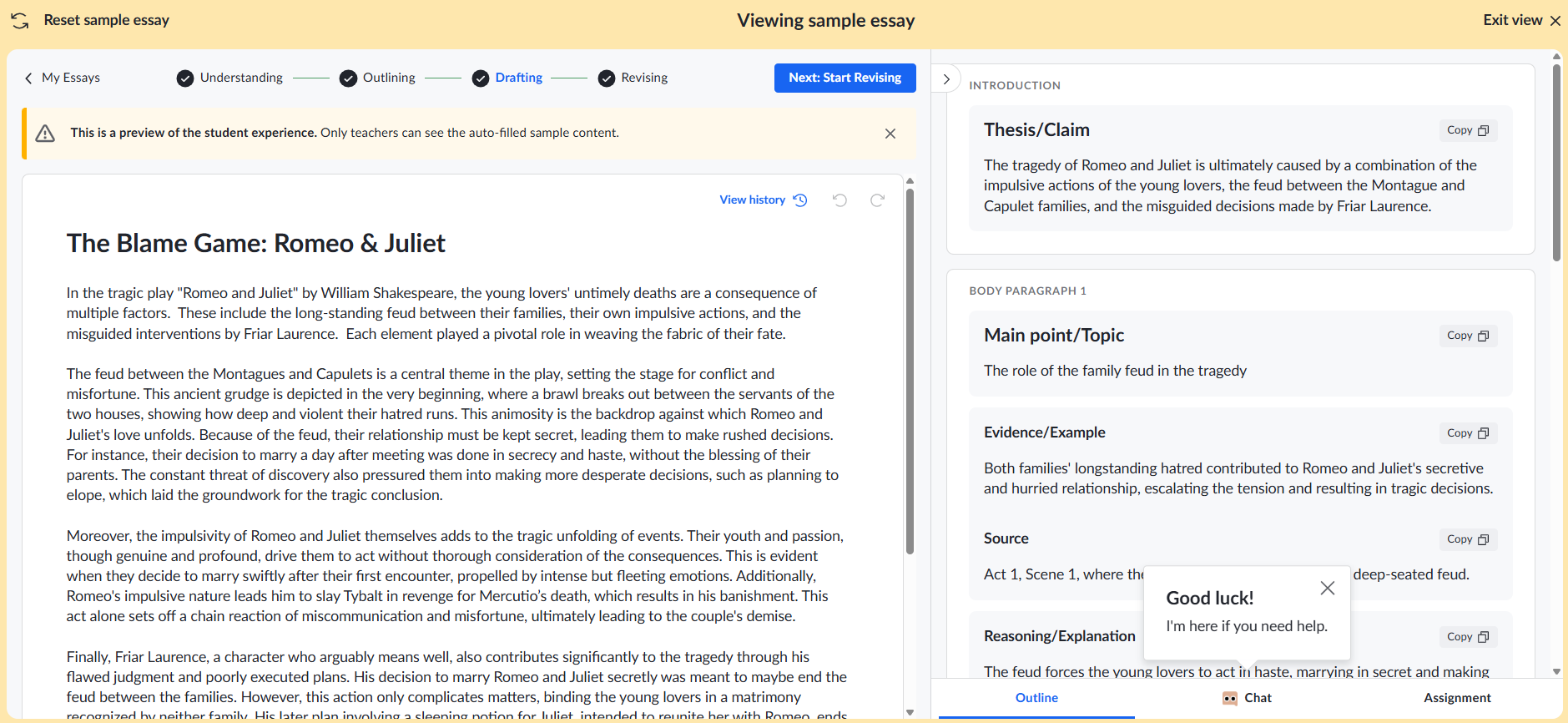
The next step is the Drafting stage. Here, students see their outline as they draft their writing in the onscreen editor. They have the option of copying/pasting ideas from their outline into the drafting area. Again, they can ask the chatbot for help or tell it that they’re stuck. They can also review the original assignment to make sure that they’re still on the right track.
Next, students advance to the Revising stage. This is where the AI scans and analyzes their essay. Based on its analysis, it offers suggestions in several categories. In the Romeo and Juliet example, the writer received one suggestion on the thesis and focus area, four regarding evidence and reasoning, three for structure and organization, and three for language use. When a student clicks on a category, they receive positive feedback on what they’ve done well and then suggestions accompanied by an explanation.
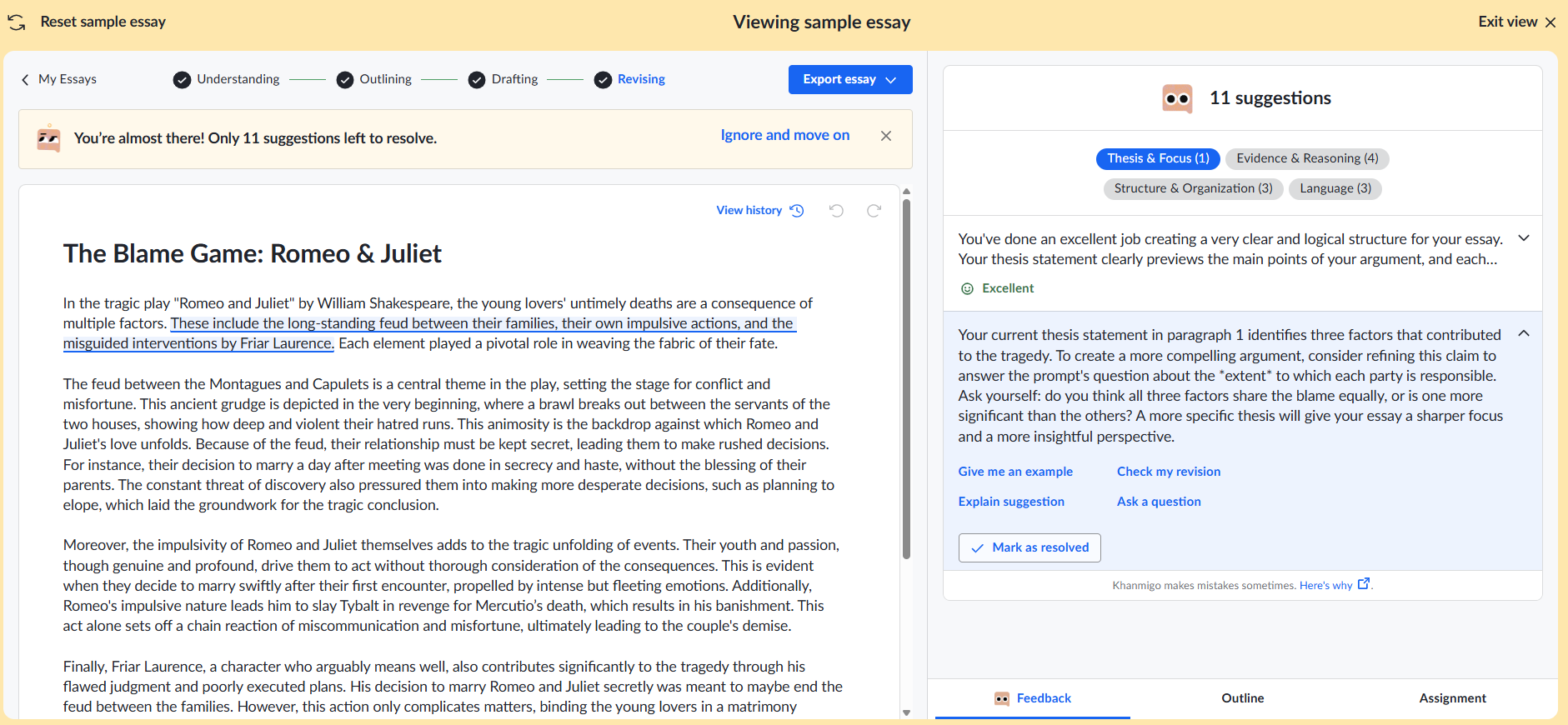
Based on the feedback received, the students revise their writing. If they’re stuck, they can click on one of the available prompts for guidance. In the case of the thesis statement feedback, generated prompts included “Give me an example,” “Check my revision,” “Explain suggestion,” and “Ask a question.”
When the student is satisfied with the revision, they click “Mark as resolved.” Again, the AI is coaching the student through the process and providing examples and explanations, much like a human coach would.
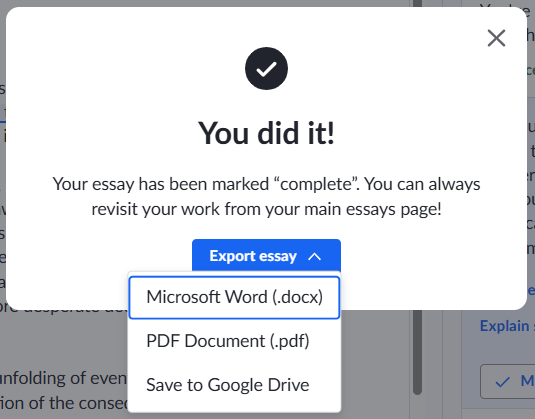
Finally, the student marks their essay as complete and exports it into one of three formats: Microsoft Word, PDF Document, or Save to Google Drive. This finished work can then be submitted to the teacher using the classroom’s learning management system or digital submission process.
Step 5: Review student progress.
At any point in the process, teachers can access the assignment dashboard and review student progress. Teachers can see how many of the writing process steps have been completed, the date last modified, how much time has been spent on the assignment, a current word count, and how many writing suggestions have been offered by the AI and resolved by the student.
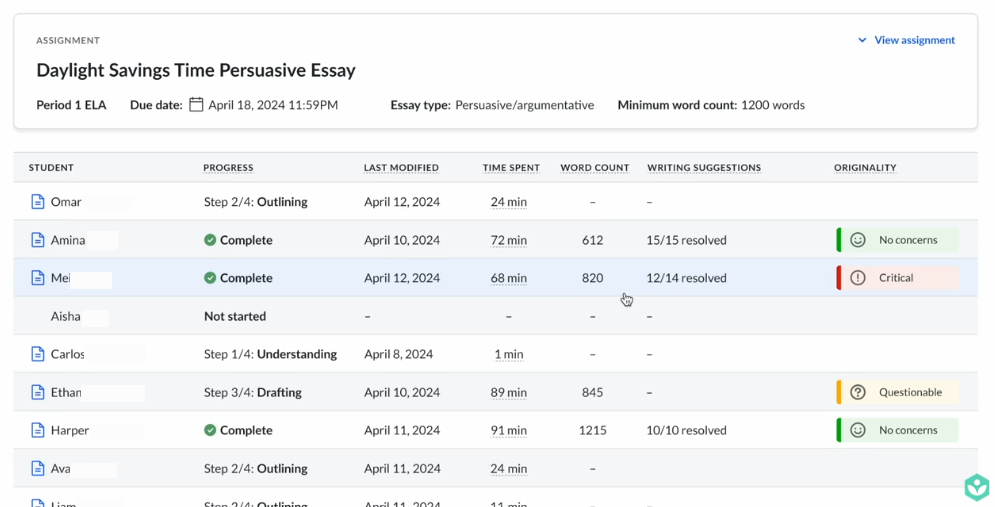
There’s even an option to view originality concerns. If the dashboard flags originality as “Critical” or “Questionable,” the teacher can click the link and see what flagged the critical alert. Typically, this means that a student has pasted in a large section of content without further revision. If you receive a notification like this, it’s a good time to have a conversation with that student to better understand the situation and see if the student is struggling.
If desired, teachers can zoom in and see a transcript of all the student interactions and chats with the AI chatbot.
While Khan Academy’s Writing Coach is not a replacement for a good writing teacher, it can be a helpful assistant in the process. Writing Coach helps provide personalized guidance throughout the writing process and generates timely feedback. This can free the teacher up to engage one-on-one with students who need extra assistance. It can also be a great tool for helping guide students to better quality writing in core content areas, such as social studies, where the writing is important, but the subject matter is the area of most importance.
AVID Connections
This resource connects with the following components of the AVID College and Career Readiness Framework:
- Instruction
- Systems
- Rigorous Academic Preparedness
- Opportunity Knowledge
- Student Agency
- Insist on Rigor
- Break Down Barriers
Extend Your Learning
- Writing Coach (Khan Academy)
- Khanmigo (Khan Academy)
- Collaborating with Khan Academy to Build the Best AI Tools for Learners (Google)