
Gemini Deep Research is a powerful new research assistant, fueled by Google’s Gemini AI. This feature is built into the Gemini AI chatbot and is designed to achieve results that go beyond simple searches.
To do this, Deep Research acts like a researcher and strives to actually understand complex information, synthesize it, and present it back to you in a way that’s useful for in-depth analysis. Rather than just pulling up links, it’s reading, comprehending, and drawing conclusions from vast amounts of data, much like a human researcher would, but it’s doing it much faster than humanly possible.
An Illustration of the Deep Research Process
To provide a clear description of the Deep Research process and experience, consider this example performed by our fictional researcher, Avery.
Step 1: Access Deep Research.
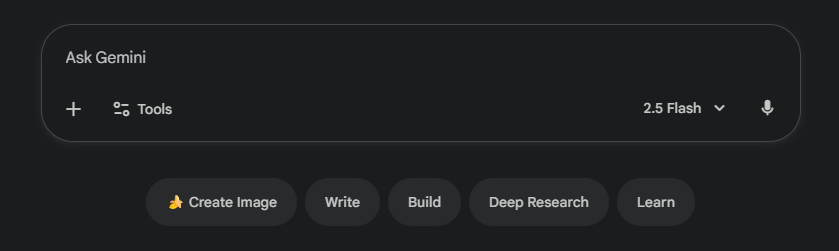
To access this feature, Avery first needs to go to Google’s AI chatbot, Gemini, and log in. Once she has logged in, she’ll want to click on the “Deep Research” option listed below the text input field of the chatbot to launch it.
Step 2: Identify source information.
Before she initiates her research task, Avery has the option of specifying where Deep Research will look for answers. It will search the web by default, accessing a diverse set of sources, such as academic journals, scientific reports, reputable news articles, and government databases, and it can also synthesize information from available multimedia sources.
However, Avery has the option of customizing this process. By clicking the “Sources” drop-down menu, she can also choose to have Deep Research look through her Gmail, Google Drive, and Google Chat. If she selects these services, she’ll need to connect them to her Gemini account to provide the platform with access to that content.

Another option that Avery has is to upload her own files. If she clicks the “Files” button, which is to the right of the “Sources” drop-down menu, she can upload up to 10 files using the free version of Gemini.
Gemini accepts most file types, although there are some size and quantity restrictions when using the free version. While the paid version will give her considerably more capacity for uploaded content, the free version is a great place to start.
This upload option makes the experience feel a little bit like Google’s NotebookLM, where she can limit the scope of the research by asking the chatbot to reference specific studies or documents that she provides.
Step 3: Enter a prompt.
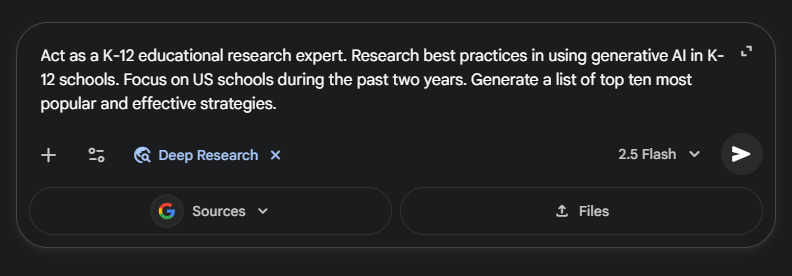
This is a key step, and it is similar to writing any generative AI prompt. Avery has experience with prompting, and she assigns the AI a role, describes clear tasks, identifies an audience, specifies details about final outputs, and adds relevant limiters and context to improve her results.
It can also be helpful for her to describe the research parameters that she would like to be used. Perhaps she wants to require Deep Research to only reference peer-reviewed sources, or maybe she wants the output to be in the form of a literature review or a pro/con table. The more detailed she is in her prompt, the clearer target the AI will have for its work, and the more satisfied she will likely be with the result.
To get started, she types in: “Act as a K–12 educational research expert. Research best practices in using generative AI in K–12 schools. Focus on U.S. schools during the past two years. Generate a list of the top 10 most popular and effective strategies.” She then hits “Enter” to initiate the AI research process.
Step 4: Review and edit the research plan.
This is where Deep Research starts to feel different. Rather than just giving her a final response, it shows Avery its research plan and allows her to review and revise it as needed. This is a big step toward using AI as a true collaborator rather than just an agent to do the work for you. It allows for more transparency and clarity about what the AI is doing and where the content is coming from.
For Avery’s prompt, Deep Research outlines how it is going to research websites to get the best information. It showed a seven-step process, which included tasks like searching for policy, pedagogy in U.S. schools, studies and pilot programs, common models of professional training, and best practices for ensuring academic integrity; compiling a list of the top generative AI tools; and then synthesizing the collected data to categorize and prioritize strategies based on adoption rates and positive educational outcomes.
This is the beginning of a high-quality research plan.
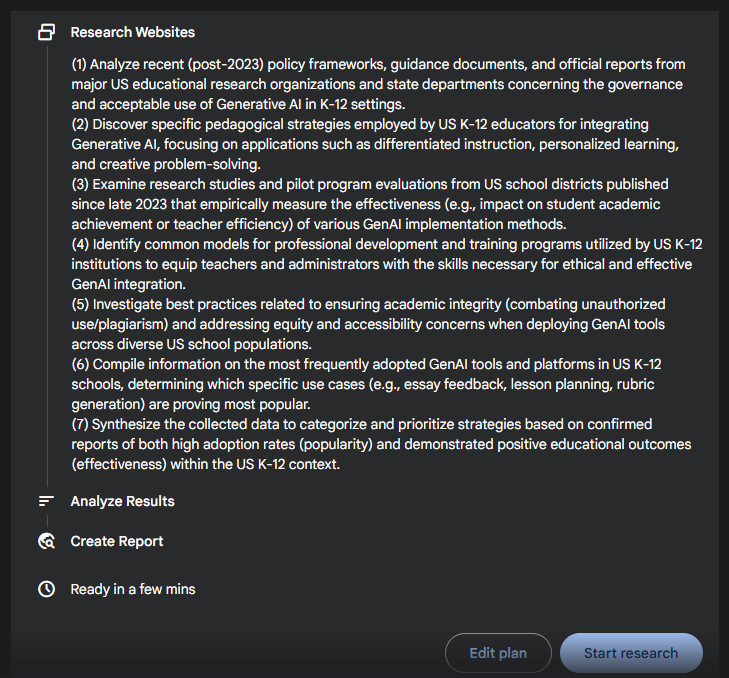
Below that part of the action plan, the AI outlined that it would also analyze results and create a report.
There is even an “Edit plan” button available if Avery wants to modify any of this. She would simply need to click that option and explain what she’d like changed. The plan will be revised accordingly.
Step 5: Prompt the chatbot to begin researching.
When Avery clicks the “Start research” button, the AI gets to work executing its research plan. It opens a window on the right side of the screen where she can watch the progress.
One major difference from regular AI chatbots that Avery notices is that Deep Research is not as fast. In fact, it feels quite slow compared to web searches and even typical AI chatbots. Because she is asking it to conduct deeper research, using sophisticated reasoning and thought processes, Avery understands that completing the AI research plan will take a while. She knows that she’s essentially trading off a little extra time for better-quality content. It takes about 5 minutes for the AI to generate Avery’s report.
Considering the results she receives, Avery feels like this was actually very fast. If she had needed to step away, Avery could have closed her browser and moved on to other tasks. In fact, she could have even shut down her computer, and the AI would have kept working in the background of her account. She’s logged in, so the AI knows to store the results in her account for when she returns.
Avery finds it really interesting to watch the AI work. It posts updates on what it is doing as it works through its research plan. For instance, it reports that it’s reviewing a specified collection of website links. It reveals that it is synthesizing its findings and determining gaps in the information. Based on its review and internal self-analysis, it completes a very iterative process and moves on to what it deems to be the next logical step in completing the task, and she can watch it work throughout.
Avery feels like this takes some of the mystery out of the AI, and it gives her more confidence in the results.

Step 6: View report.
When Deep Research is finished with Avery’s task, it generates a nicely organized and formatted report.
There’s a convenient “Contents” drop-down menu option at the top. By clicking this, Avery sees an outline of the report. She can click on a section to jump to that spot or simply scroll down and review the report from top to bottom. If she clicks on a section, it brings her to an editable view, so she can work with the generated content and refine it as she sees fit. There are even integrated AI-powered options in the lower-right corner of the screen that allow her to automatically adjust for things like length and tone.
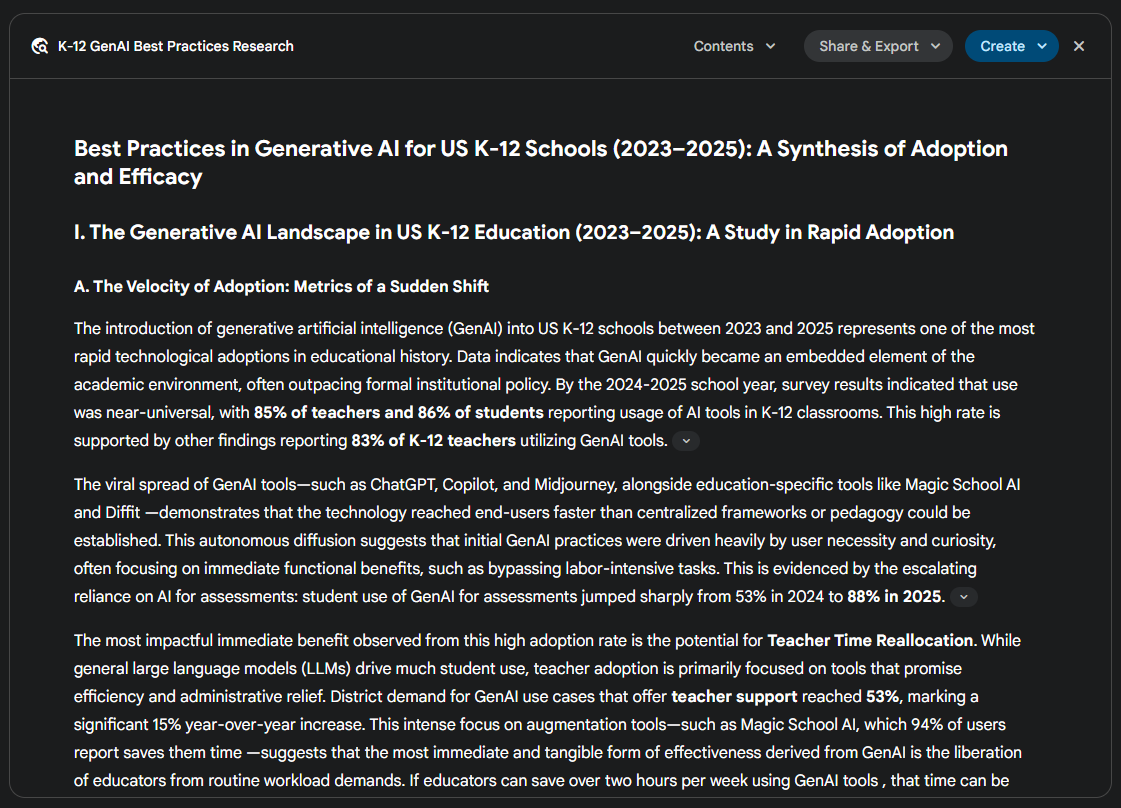
Avery scrolls down and reviews her report. For this prompt, it gives her a document titled: Best Practices in Generative AI for U.S. K-12 Schools (2023–2025): A Synthesis of Adoption and Efficacy.
It includes multiple sections:
- The Generative AI Landscape in U.S. K-12 Education (2023–2025): A Study in Rapid Adoption
- Core Strategies for Teacher Augmentation and Operational Efficiency (Popularity-Driven)
- Advanced Pedagogical Strategies for Deep Learning (Effectiveness-Driven)
- Foundational and Supporting Strategies for Systemic Success
- The Top Ten Strategies: A Synthesis of Popularity and Effectiveness
- Conclusion and Strategic Recommendations
Throughout the report, there are clickable citations embedded, so Avery can go to the source documents and review the original materials more carefully. This provides her with an added level of confidence in the quality and credibility of the report.
Step 7: Share and create.
Once the report is generated, Avery is given a few additional options.
In the top-right corner of the report, there is a “Share & Export” button. Clicking that gives her options for sharing with a link, exporting to Google Docs, or copying the contents to be pasted elsewhere.
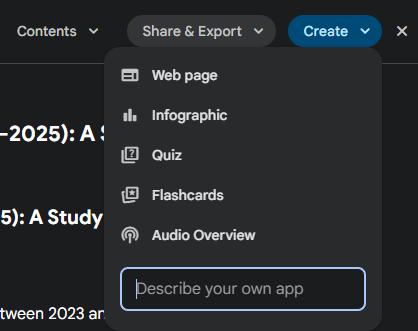
Next to the “Share & Export” button is a “Create” option. Clicking that reveals options for generating a webpage, infographic, quiz, flash cards, or an audio overview. These are similar to options in Google’s NotebookLM.
Possible Teacher Uses
As college students, we had dedicated time to research and think academically. As educators, that time is scarce, but we still want our work to be research-based. With Deep Research, you can enter a research task, let the AI do the work, and quickly review the findings.
This could be a great professional learning community (PLC) tool for grounding pedagogical conversations in current research. It can also be great for finding research-backed instructional strategies for your classroom or perhaps for building a research-based foundation for curricular content. You could look for primary sources to support that content, conduct a literature analysis, find real-world applications, or further your own professional development.
Think about questions you have that require more research time than what’s available. Think about times where you ask yourself: What does the research say? Those are good places to start with use of Deep Research.
Possible Student Uses
This is a tool that is more suitable for your more advanced or older students. While you can simplify the final report with the built-in filters, the ideas and connections are put together at a sophisticated level.
Understandably, teachers do not want Deep Research to do all the hard research work for students. Still, it can be a helpful support tool for activities where getting the research is important but the research process itself is not the goal.
For instance, if students were planning for debates, they could use this tool to help them build their cases and anticipate counterarguments for which they need to prepare. Maybe they are exploring scientific hypotheses, and you want them to think deeply about that context. Ideas gathered through Deep Research might push student thinking into areas they hadn’t considered or weren’t aware of.
Other potential applications for students might include conducting background research for a science project, gathering multiple historical perspectives about a topic or time period, preparing for an argumentative essay, fact-checking current events or posts in the media, exploring personal interests with trusted sources, and even seeing examples of how topics can be researched and cited.
A great way to get started is to engage with Gemini Deep Research for yourself. Think about something that you’d really like to research but just don’t have the time to. Craft a good prompt and put Gemini Deep Research to work.
AVID Connections
This resource connects with the following components of the AVID College and Career Readiness Framework:
- Instruction
- Rigorous Academic Preparedness
- Opportunity Knowledge
- Student Agency
- Insist on Rigor
- Break Down Barriers
Extend Your Learning
- Gemini Deep Research (Google)
- Gemini (Google)
- NotebookLM (Google)